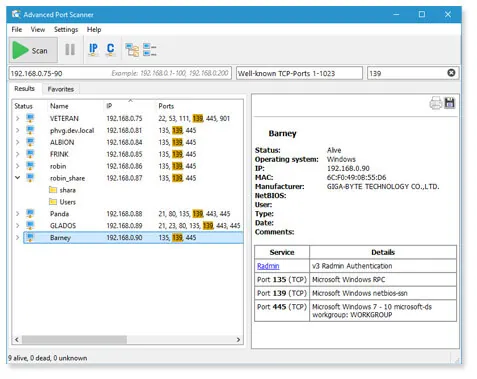
Picture a small design studio that sets up a new NAS over a weekend. By Monday it’s serving files, running a media server, and — thanks to a checkbox someone ticked during setup — offering an old unencrypted file-transfer service to the whole office LAN. Nobody notices, because nobody has a way to look. The honest first step in cases like that isn’t a security audit; it’s a list of which ports are open on which of your own boxes. Advanced Port Scanner gives a Windows user that list in a couple of minutes with no syntax to learn.
Before you point it at anything: Port scanning is appropriate on computers and networks you own or administer, or where you have written permission. Scanning other people’s systems can breach acceptable-use policies and, in some jurisdictions, the law.
What it does
Advanced Port Scanner is a Windows desktop tool from Famatech, sibling to Advanced IP Scanner. You give it one address or a range, pick a port list, and it checks each host for listening TCP ports. For every open port it reports:
- the port number and the common service name associated with it
- where it can, the application and version responding on that port, read from the service’s banner
- quick actions — open HTTP or HTTPS in a browser, connect over FTP, RDP or Radmin, browse SMB shares
The default port list covers the usual suspects — 21, 22, 23, 25, 53, 80, 110, 139, 143, 443, 445, 3389 and a few dozen more — and you can type your own list or ranges (for example 1-1024,3389,5900,8080-8090). Results can be saved and reopened, which lets you rerun a check after you change something.
In a case like that, a scan of the NAS would show ports 21, 80, 443, 445 and 32400 open. Port 21 is the surprise. Turning off the service in the NAS admin page and rescanning confirms the fix within minutes.
Where it is strong
Zero learning curve. It looks and behaves like its IP scanner sibling: range, port list, Scan. Office managers who would never open a terminal can use it.
Readable output. Service names and version strings beside each port turn “445 open” into “Microsoft Windows file sharing,” which is the level of explanation a non-specialist needs to decide whether something belongs.
Fast on a LAN. It runs many checks in parallel. The default list across a /24 of mostly idle hosts typically finishes in a couple of minutes; a single host is near-instant.
Good first stop for checking your own PC. Scanning 127.0.0.1 or your PC’s LAN address shows what your own machine exposes. Our step-by-step on checking which ports are open on your computer uses it alongside built-in Windows commands.
Where it falls short, and who should skip it
TCP only, and a connect-style check. It doesn’t look at UDP services such as DNS on 53/udp, SNMP on 161 or many IoT discovery protocols. A device can be busy on UDP and still show a short or empty list here.
Windows only. No macOS or Linux build. Mac users should look at Nmap with its Zenmap interface, or at Angry IP Scanner with its ports fetcher.
Limited version detection. Banner reading works for services that announce themselves. Services that stay silent until spoken to correctly show up as a port number and a guess based on the usual assignment, which can mislead.
No scheduling, history or reports. You can save a scan, but there’s no automatic comparison between runs and no report you’d give to an auditor.
Only sees what’s reachable from where you sit. Scanning from inside the LAN tells you nothing about what’s reachable from the internet through your router. For that you need an external check against your own public address, with your ISP’s terms in mind.
Skip it if you need UDP coverage, OS identification, scripted checks or anything you’ll compare over time — that’s Nmap territory.
Who it suits
Windows users who manage a handful of servers, NAS boxes, cameras or printers and want to confirm which services are actually on. It’s also a sensible teaching tool for people learning what ports are before moving on to more capable scanners.
Licensing and cost
Famatech offers Advanced Port Scanner as freeware, and at the time of writing states it can be used at home and in businesses. There’s no paid edition of the scanner itself. The interface promotes Radmin, Famatech’s commercial remote-control product, which is entirely optional. Check the vendor’s current license terms before deploying it across an organization.
How it compares
The obvious comparison is with Nmap: Advanced Port Scanner is simpler and friendlier, Nmap is vastly more capable and cross-platform. Our Nmap vs Advanced Port Scanner comparison runs both on the same set of hosts. If you want ports as one column in a broader device list, SoftPerfect Network Scanner and Angry IP Scanner both include port checks. When a port is open and you want to understand what’s actually crossing it, that’s a job for Wireshark. The full set is on our port and service scanners page.
Getting it safely
Famatech’s scanners are popular targets for impersonation, so be deliberate:
- Go to advanced-port-scanner.com by typing the address, not via an ad or a “mirror” site.
- After fetching it from the vendor’s site, check Properties → Digital Signatures for Famatech as the signer.
- Compare the SHA-256 value with
Get-FileHashin PowerShell if the vendor publishes one.
We host no files and link only to vendor pages. See where to get it for our full verification checklist.
FAQ
Is it safe to scan my own router?
Yes, on your own network. It sends ordinary connection attempts. Some routers log them as a “port scan detected” event, which is expected.
Why does it show a port as open when I thought I’d turned the service off?
Another program may be using that port, or the service restarted. On Windows, netstat -ano shows which process ID owns a listening port on your own PC.
Can it check whether my ports are open to the internet?
No. It only sees what’s reachable from your position inside the network. Use an external test of your own public IP address for that.
Does it scan UDP ports?
No. For UDP, use Nmap with -sU on hosts you’re authorized to scan, and expect it to be slow.