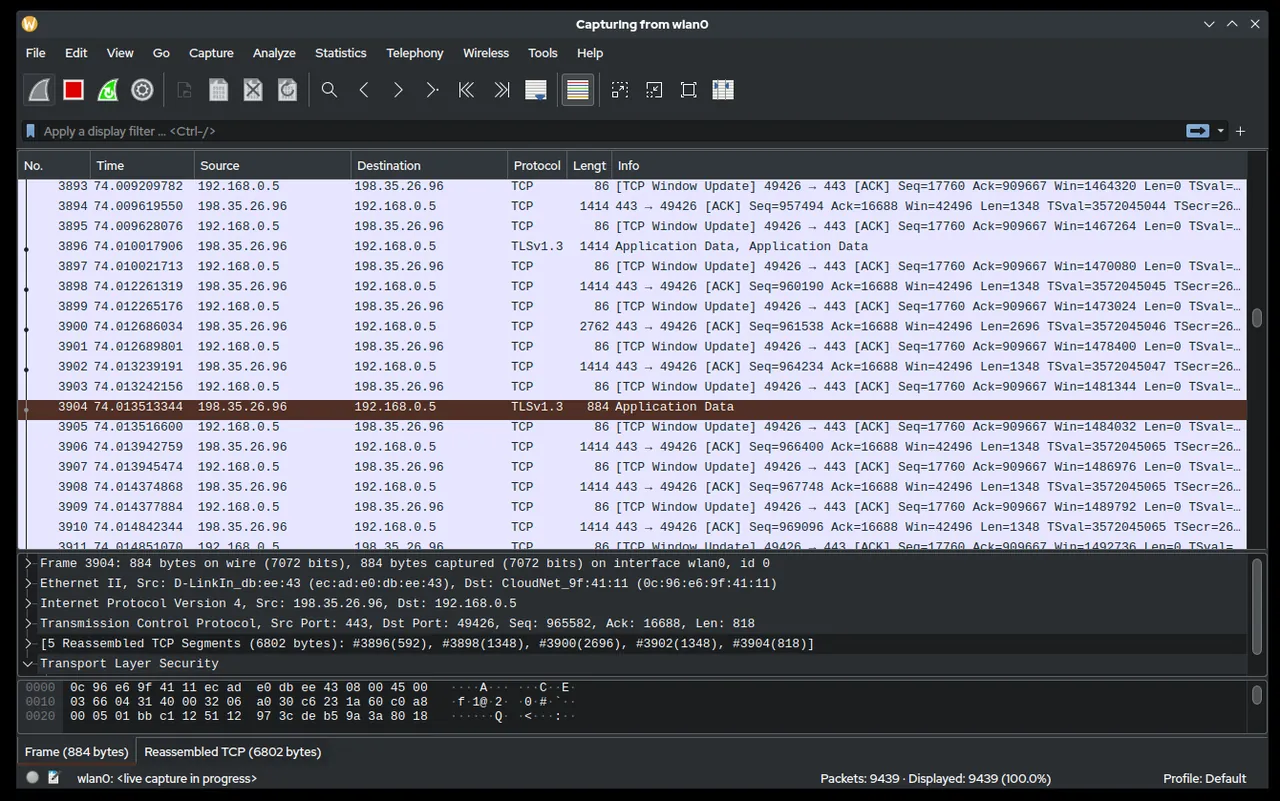
Picture a shared office printer that keeps vanishing every afternoon. Scanners find it in the morning and can’t find it after lunch. Its web page shows a static address, and the router’s lease table is no help. What would finally explain it is a short packet capture on a laptop plugged into the same switch: partway through the afternoon, a second device — a cheap wireless extender someone brought from home — starts answering ARP for the printer’s address. No scanner would tell you that, because the problem isn’t what’s listening; it’s what’s being said. That’s the gap Wireshark fills in a network surveyor’s kit.
Before you point it at anything: Packet capture can record other people’s traffic, including personal data. Capture only on networks you own or administer, follow your organization’s policies, and avoid keeping captures longer than needed.
What it does
Wireshark, now stewarded by the Wireshark Foundation, is an open-source network protocol analyzer for Windows, macOS and Linux. It records packets passing a network interface and decodes them — thousands of protocols, from Ethernet and ARP up to DHCP, DNS, TLS handshakes, SMB and industrial protocols — into readable fields. Key pieces:
- Capture filters (BPF syntax, e.g.
arp or port 67 or port 68) limit what gets recorded. - Display filters (e.g.
dhcp,mdns,arp.duplicate-address-detected) narrow what you see afterwards. - Statistics → Endpoints lists every MAC and IP address seen, with packet counts and resolved vendor names.
- Statistics → Conversations shows who talks to whom.
- tshark, the command-line companion, captures and filters without the GUI.
On Windows, capture relies on the Npcap driver, which the Wireshark setup offers to add; on macOS and Linux it uses libpcap.
Where it is strong for surveying your own network
Passive discovery. Many devices announce themselves constantly: DHCP requests carry hostnames and vendor class IDs, mDNS reveals printers and smart speakers, SSDP shows TVs and media boxes, LLMNR and NetBIOS reveal Windows names. A 15-minute capture filtered on dhcp or mdns or ssdp or nbns often names devices that ignore every ping.
Diagnosing conflicts and rogue services. Duplicate IP addresses, a second DHCP server handing out wrong gateways, or a device flooding the network show up clearly. The display filter arp.duplicate-address-detected is one of the fastest routes to an answer we know; our IP address conflict guide explains the wider process.
Evidence you can share. A saved capture (.pcapng) is a precise record that a colleague or vendor support can examine with the same tool.
Free and thoroughly documented. Large user community, a detailed user guide, and sample captures for learning.
Where it falls short, and who should skip it
It doesn’t produce a device list. There’s no “scan” button and no inventory table. Endpoints statistics come close, but only for devices that happened to talk during your capture. For a quick list, Advanced IP Scanner or Fing is the right tool.
Switches limit what you see. On a modern switched network, your laptop only receives its own traffic plus broadcasts and multicasts. That’s plenty for ARP, DHCP and mDNS discovery, but to see traffic between two other machines you need a switch with port mirroring (SPAN) or a network tap. Wi-Fi capture of other stations requires monitor mode, which many laptop adapters and operating systems don’t support well.
The learning curve is real. The interface is dense and the protocol trees are deep. A non-specialist can get useful answers by following a recipe, but interpreting unusual traffic takes experience.
Privacy weight. Captures can contain credentials sent in clear text, document names and browsing activity. Treat capture files as sensitive and delete them when done.
Performance on busy links. Long captures on a busy network produce huge files; use capture filters and ring buffers.
Skip it if you want answers without reading packets, or if you have no permission to capture on the network in front of you.
Who it suits
Admins and technicians chasing intermittent problems — conflicts, disappearing devices, mysterious broadcast storms — and homelab owners who want to learn how their network really behaves. It’s also a strong teaching tool: watching a DHCP exchange once makes networking make sense.
Licensing and cost
Wireshark is free software under the GNU GPL version 2. There’s no paid edition and no feature restriction. Its development is supported by the Wireshark Foundation, a nonprofit, and by sponsors. The Npcap capture driver on Windows is a separate project with its own license; it’s included for normal use of Wireshark, but organizations redistributing it or deploying it at scale should read Npcap’s terms.
How it compares
Wireshark doesn’t really compete with the scanners here; it complements them. Nmap actively asks each host what it’s running, while Wireshark passively observes. Advanced Port Scanner tells you port 445 is open; Wireshark shows what’s crossing it. A practical workflow is to build the device list with a scanner, then use Wireshark for the one device that doesn’t make sense. See our port and service scanners page for how it sits alongside the others.
Getting it safely
Wireshark’s home is wireshark.org. After fetching a release:
- On Windows, check the digital signature under Properties → Digital Signatures.
- Compare the file’s SHA-256 against the signed hash list the project publishes for each release.
- On Linux, use your distribution’s packages or the project’s official PPA/repository, and add yourself to the capture group rather than running the whole GUI as root.
We host no files. The where to get it page lists every vendor site we reference, with a verification checklist.
FAQ
Can Wireshark find every device on my network?
Only devices that send traffic your capture point can see. Leave a capture running for 15–30 minutes with a DHCP/mDNS/ARP filter and most devices will show up, but pair it with an active scan for completeness.
Do I need to run it as administrator?
Capturing needs privileges. On Windows, Npcap handles that at setup; on Linux, add your user to the wireshark group instead of running as root.
Why can’t I see my colleague’s traffic?
Switches deliver unicast traffic only to its destination port. You’d need port mirroring on a managed switch, which is a decision for whoever administers that network.
What’s the difference between capture and display filters?
Capture filters decide what gets recorded and use BPF syntax. Display filters work on what’s already captured and use Wireshark’s own, richer syntax.